I've been giving tech talks for a few years now. And in this world, there are as many ways to build slides as there are speakers. You have the WYSIWYG tools: Google Slides, PowerPoint, Keynote. Intuitive, easy to pick up, and they get the job done. Then there are those who went the other way: coding their presentations with tools like Slidev, Reveal.js, Slidesk or even homemade solutions. What's great about these tools is that they're progressive: you start with a simple Markdown file, and pull in the advanced features (Vue, React...) only when you need them.
Talking with other speakers recently, they made an interesting point: once you code your slides, there are no more limits. You embed whatever you want, however you want. Slidev puts it well in their docs: these tools are Web-based, "which means nothing is impossible". That's exactly the mindset I had when I started looking for a better way to do live coding in my talks.
🎯 The live coding problem
In my latest conferences with @slocaly and @eidoux, we kept running into the same problem with every new presentation: we need to show code, we're in a web app where nothing is impossible, so how do you actually deliver the best live coding experience?
In general, you need three things: access to your code, the ability to edit it, and a way to see the result in real time. Simple in theory, but in practice...
We used Reveal.js for a long time, but we've since moved to Slidev. The example here is Slidev-specific, but the concept works with any code-based slide tool: we're building on native browser APIs, and it's all just the Web under the hood. No limit to what you can do.
💡 The usual solutions (and their limits)
When a technical topic calls for a quick demo, live coding included, a few approaches come up again and again:
Skip them entirely
This is often a real blocker for speakers, and understandably so. Beyond the stress of live coding, from a pure audience-experience perspective, you can quickly lose fluency and clarity. And lose the room with it.
Which is a shame, because well-executed live coding is often the best way to land a technical point, show a trick, or make a concept click. It's also usually what people remember most. So while skipping live coding entirely is the easy path, we wanted something better.
Alt-Tab to an external IDE
The "classic" move: keep your IDE open on the side. But that means switching windows mid-presentation, adjusting font sizes on the fly, and often showing more code than necessary. Attention gone.
Pre-record it as a video or screenshot
Simple enough, and it works in practice. But it throws away everything that makes live coding valuable: the interactivity, the spontaneity, the ability to adjust on the fly based on how the audience reacts. And honestly, the result doesn't look great. As a frontend developer, aesthetics matter 👀
That said, it's still a great backup plan to have ready when something goes wrong with your live coding setup. Always have a fallback.
Cloud IDEs (StackBlitz, Gitpod…)
StackBlitz, Gitpod... real VS Code in the browser, with a full project. StackBlitz even has an SDK to embed directly as an iframe in your slides. But the problem is the same: you're dependent on internet access. Conference Wi-Fi is not what you want to bet your talk on.
Embedded editors (Monaco...)
Slidev offers Monaco Editor integration. For a live coding demo that stays within a single file, it can totally do the job. But the moment you need to navigate between files, open folders, or work across multiple parts of a project, it falls short fast.
Sandpack
Sandpack from CodeSandbox is honestly really well built: tons of components, code previews, plugins, a lot of flexibility. But that's also the problem: getting it to look exactly right takes a lot of configuration and ongoing maintenance. We wanted something simpler.
✨ What we actually wanted
After trying all these solutions, we knew exactly what we needed: flexibility and interactivity, to make our presentations more engaging, using tech we already know. Our requirements were clear:
- A full project inside an IDE, not just a snippet
- All the features of a real editor (autocomplete, navigation, extensions...)
- The ability to control what's visible: only show the folders and files that matter, not the whole project structure
- Everything inside the slides, no window switching
- 100% local to avoid deployment headaches and connection issues on the day
- A smooth, integrated experience, as if everything lived in the same window
And one day, we discovered the magic solution: Code Server, VS Code, but in the browser.
🚀 The solution: your IDE, served locally in the browser
Code Server is an open source project by Coder: VS Code, running in the browser. You install it on your machine and access your project via a local URL. Exactly what we were looking for: a real IDE, accessible directly from your slides.
A simple installation (e.g. with Homebrew on macOS):
brew install code-serverThen just launch it with the path to the project you want to open:
code-server /path/to/your/project --auth=none --port 4000--auth=none skips the login screen.
--port 4000 avoids conflicts with your other services.
Once it's running, you get a local URL you can drop straight into an iframe 🪄
From there, just use query params in the iframe src to control exactly what opens: a specific folder with ?folder= or a full VS Code workspace with ?workspace=. We only show what matters for the live coding, nothing more.
<iframe src="http://localhost:4000?folder=/path/to/your/project/src/" ... />This is where the beauty of coding your slides pays off. Since it's all just the Web under the hood, you can now embed your IDE directly in a slide via a simple iframe. Same goes for the demo app preview: a second iframe right next to it.
Three services running locally, two iframes in one slide. Code Server handles the editing, your demo app runs with its usual hot reload, and Slidev ties it all together. Add a bit of CSS (obviously...), a smooth animation to switch between the IDE and the app preview, a keyboard shortcut, and you're done.

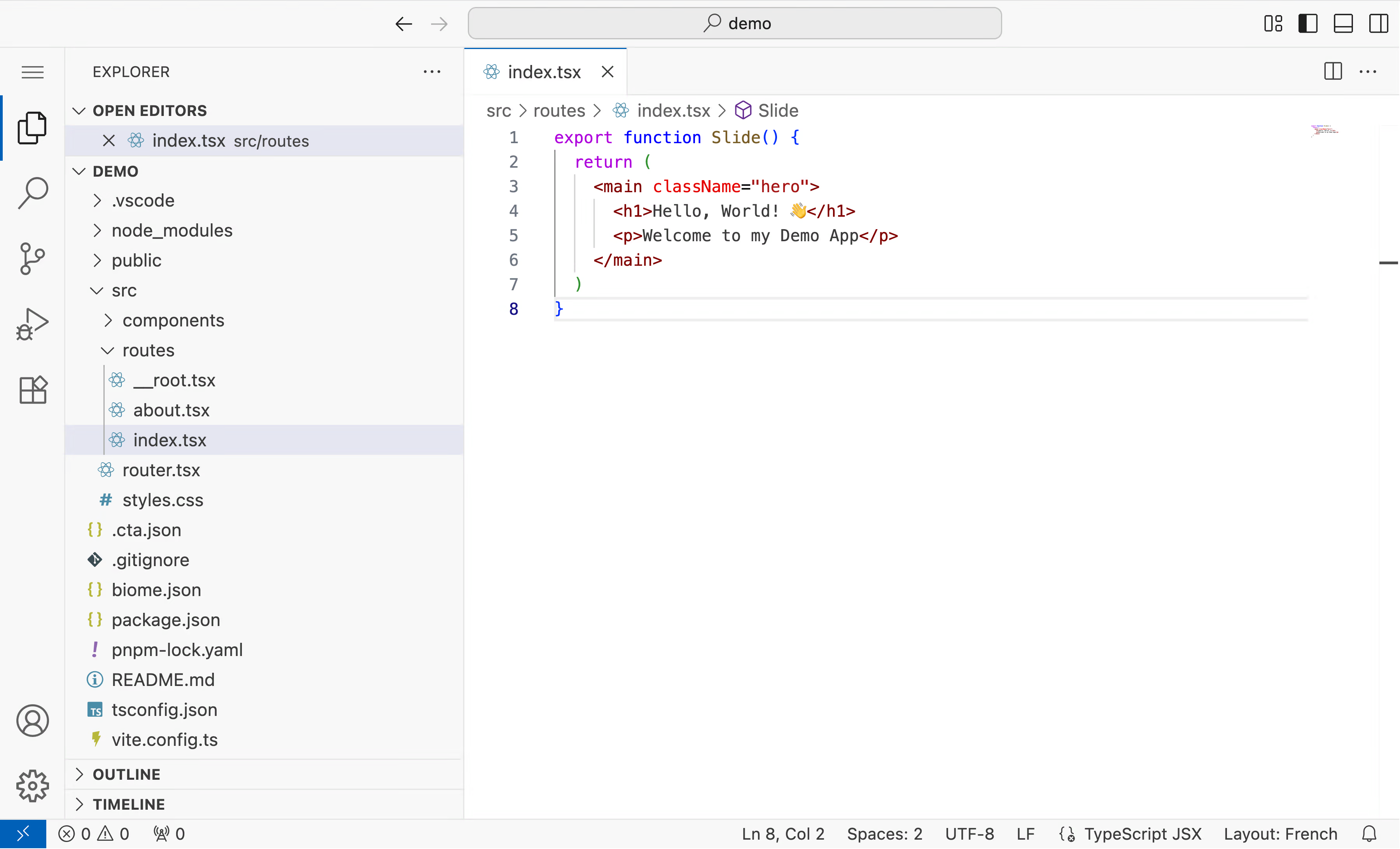
It's smooth, it's clean, and most importantly everything stays in the same window. No more alt-tabbing, no more "hang on let me find my terminal", no more last-minute font size or zoom adjustments.
🔄 Alternatives
Since I started using this setup, I've seen a few other interesting solutions pop up. Worth knowing about.
If you're looking for something lighter than Code Server, there's Coderaft.
VS Code in the browser, packaged as an npm module, zero dependencies, and massively lighter: 25MB vs Code Server's 776MB.
npx coderaft -o ./path/to/your/projectYou get a local URL, drop it into an iframe in your slide, same approach, less setup. I discovered it via a post from @pi0, gave it a try, and honestly, it's ridiculously simple. I loved it 😍
OpenVSCode Server
OpenVSCode Server is the same concept as Code Server, but the "official" version: maintained by Gitpod, built on the same technical foundations as GitHub Codespaces. The goal is to make as few modifications as possible to the original VS Code, which makes it more faithful to the native editor and generally more up to date. It also runs locally, same approach: a local URL in an iframe in your slides, zero network dependency.
🎬 Conclusion
With self-hosted IDEs, I've finally found a code presentation experience that integrates seamlessly into my slides, with the full freedom of a real IDE and no compromises.
The first time we used this at a conference, we got a flood of questions at the end: "what is that IDE inside your slide?", "how did you do that?" That's exactly why I wanted to write this article: for the speakers out there dealing with the same problems we had.
And now that you understand the concept... why stop at an IDE? A live video feed from a camera? A terminal, like @mouss did in one of his talks? An interactive demo with the audience? Nothing is impossible.